Printable Coloring Pages A4 — How to Print a Coloring Page at Home Step by Step

Kolorowanki do druku — co musisz wiedzieć na start
Zanim przejdziemy do technikaliów, kilka ważnych informacji:
Czego potrzebujesz:
- Drukarka (czarno-biała lub kolorowa — oba typy działają idealnie)
- Papier A4 (standardowy, 80g/m² wystarczy)
- Plik PDF z kolorowankami
- Przeglądarka PDF (Adobe Acrobat Reader, bezpłatna)
Czy drukarka musi być kolorowa? Nie. Kolorowanki to czarno-białe ilustracje z konturami — drukują się tak samo dobrze na drukarce czarno-białej jak na kolorowej. Nie musisz wydawać pieniędzy na drukarkę kolorową tylko dlatego, że kolorowanka jest “kolorowa” po pokolorowaniu.
Krok 1: Otwórz plik PDF
Plik PDF można otworzyć w:
- Adobe Acrobat Reader (bezpłatny, dostępny na Windows, Mac, Android, iOS)
- Przeglądarka internetowa — Chrome, Firefox i Edge otwierają pliki PDF bezpośrednio
- Aplikacja Pliki na telefonie lub tablecie
Jeśli masz problemy z otwarciem pliku PDF, pobierz bezpłatną aplikację Adobe Acrobat Reader ze strony adobe.com.
Krok 2: Wybierz stronę do druku
W programie PDF możesz zobaczyć miniaturki wszystkich stron. Wybierz tę, którą chcesz wydrukować.
Możesz drukować:
- Całe dokumenty (wszystkie strony naraz)
- Wybrane strony (np. tylko strony 3, 7 i 12)
- Jeden zakres (np. strony 1-5)
Dla kolorowanek zazwyczaj najwygodniej jest drukować po kilka stron naraz — przygotuj 5-6 stron i rób kolejne, gdy poprzednie zostaną pokolorowane.
Krok 3: Ustawienia drukowania — co wybrać?
Gdy klikniesz “Drukuj” (Ctrl+P na Windows, Cmd+P na Mac), pojawi się okno z ustawieniami. Oto co musisz ustawić:
Rozmiar papieru: A4
Upewnij się, że wybrany jest A4 (210 x 297 mm). To standard europejski — większość domowych drukarek jest na to skonfigurowana domyślnie.
Orientacja: Pionowa (Portrait)
Kolorowanki są zaprojektowane w układzie pionowym. Wybierz “Pionowa” lub “Portrait”.
Dopasowanie: “Dopasuj do obszaru wydruku” lub “Faktyczny rozmiar”
Opcja “Dopasuj do obszaru wydruku” (Fit to Printable Area) sprawia, że rysunek zajmuje jak największą część kartki bez przycinania. To zalecana opcja.
Opcja “Faktyczny rozmiar” (Actual Size lub 100%) drukuje w dokładnym rozmiarze z pliku PDF. Może zostawić większe marginesy.
Unikaj opcji “Powiększ stronę do obszaru wydruku” — może to zniekształcić rysunek.
Jakość: Standardowa lub Najlepsza
Do kolorowanek wystarczy jakość standardowa (Normal) — daje wyraźne linie bez nadmiernego zużycia tuszu. Opcja “Najlepsza” (Best) jest niepotrzebna i zużywa więcej tuszu.
Kolor: Skala szarości (Grayscale)
Kolorowanki to czarno-białe ilustracje. Wybierz “Skala szarości” lub “Czarno-białe” — zaoszczędzisz kolorowy tusz/toner.
Jeśli Twoja drukarka jest tylko czarno-biała — po prostu nic nie zmieniaj, będzie drukować w skali szarości automatycznie.
Krok 4: Załaduj papier i wydrukuj
Załaduj papier A4 do podajnika drukarki. Sprawdź:
- Czy papier jest ułożony prawidłowo (zazwyczaj stroną do druku ku dołowi)
- Czy nie ma za dużo papieru w podajniku (niektóre drukarki lubią mieć mniej papieru)
- Czy drukarka jest podłączona i ma wystarczająco tuszu/toneru
Kliknij “Drukuj” i poczekaj.
Rozwiązywanie problemów — co zrobić gdy…
Wydruk jest zbyt jasny / linie są niewyraźne
- Sprawdź poziom tuszu/tonera w drukarce
- Zwiększ intensywność druku w ustawieniach (szukaj “Gęstość tuszu” lub “Print Density”)
- Spróbuj opcji “Najlepsza jakość” (Best Quality)
- Wyczyść głowice drukujące (opcja w ustawieniach drukarki)
Rysunek jest przycięty na brzegach
- Wybierz opcję “Dopasuj do obszaru wydruku” w ustawieniach
- Zmniejsz skalę do 95% — zostawia marginesy
- Sprawdź ustawienia marginesów w opcjach zaawansowanych
Wydruk jest małym, a nie wypełniającym całą kartkę
- Wybierz “Dopasuj do obszaru wydruku” lub “Powiększ do wydruku”
- Upewnij się, że wybrany rozmiar to A4, a nie Letter (US) czy A5
Drukarka pyta o tusz kolorowy, gdy mam tylko czarno-białą
- W ustawieniach drukarki wybierz “Czarno-białe” lub “Tylko czarny tusz”
Ile papieru i tuszu zużywasz?
Jedna strona kolorowanki to:
- Około 1-2 ml tuszu (nieznaczna ilość) — linie konturowe zużywają bardzo mało
- 1 arkusz papieru A4 — standardowy pakiet 500 arkuszy za ~15-20 zł wystarczy na wiele miesięcy
Kolorowanki to jedne z najtańszych w druku materiałów — same linie konturowe to minimum tuszu.
Drukowanie wielokrotne — supermocy kolorowanek do druku
Jeden z największych atutów kolorowanek w formacie PDF to możliwość wielokrotnego drukowania. Jeśli dziecko pokoloruje ulubioną stronę, możesz wydrukować ją ponownie — bez dodatkowych kosztów.
To szczególnie ważne gdy:
- Dziecko jest niezadowolone z efektu i chce zacząć od nowa
- Masz kilkoro dzieci i każde chce tę samą kolorowankę
- Kolorowanka stała się ulubioną i dziecko wraca do niej wielokrotnie
- Potrzebujesz zestawu dla całej grupy w przedszkolu
Gotowe zestawy do druku
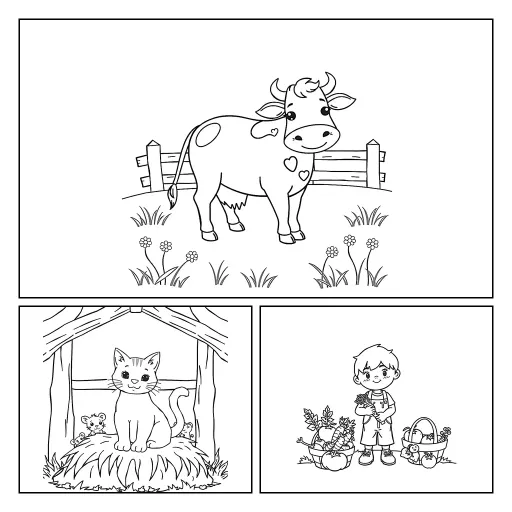
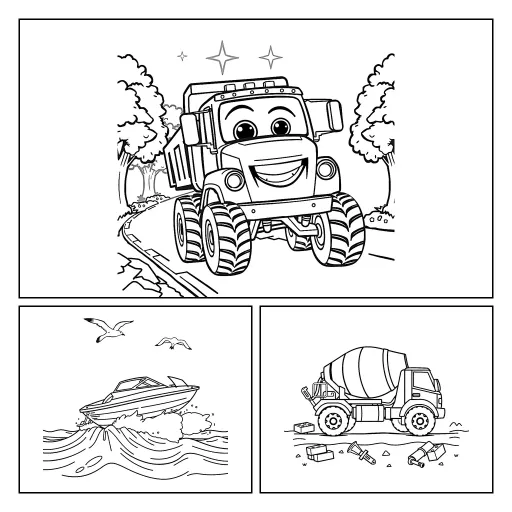
Jeśli szukasz gotowych kolorowanek PDF w wysokiej jakości, polecamy nasze zestawy: Farma z wiejskimi zwierzętami oraz Pojazdy z pojazdami i maszynami — każdy zaprojektowany specjalnie pod druk domowy A4.
Podsumowanie
Drukowanie kolorowanek A4 w domu jest proste i nie wymaga specjalnej wiedzy technicznej. Otwórz PDF, wybierz właściwe ustawienia (A4, orientacja pionowa, dopasuj do obszaru wydruku, skala szarości), załaduj papier i drukuj. W razie problemów — sprawdź poziom tuszu i ustawienia jakości. I pamiętaj: możesz drukować tyle razy, ile chcesz!
Printable Coloring Pages — What You Need to Know First
Before we get to the technical details, a few important facts:
What you need:
- A printer (black-and-white or color — both work perfectly)
- A4 paper (standard, 80g/m² is enough)
- A PDF file with coloring pages
- A PDF viewer (Adobe Acrobat Reader, free)
Does the printer need to be color? No. Coloring pages are black-and-white illustrations with outlines — they print just as well on a black-and-white printer as on a color one. You don’t need to spend money on a color printer just because the coloring page will be “colorful” after coloring.
Step 1: Open the PDF File
A PDF file can be opened in:
- Adobe Acrobat Reader (free, available on Windows, Mac, Android, iOS)
- Web browser — Chrome, Firefox, and Edge open PDF files directly
- Files app on your phone or tablet
If you have trouble opening the PDF file, download the free Adobe Acrobat Reader app from adobe.com.
Step 2: Choose the Page to Print
In the PDF program, you can see thumbnails of all pages. Select the one you want to print.
You can print:
- Entire documents (all pages at once)
- Selected pages (e.g., only pages 3, 7, and 12)
- A range (e.g., pages 1-5)
For coloring pages, it’s usually most convenient to print a few pages at a time — prepare 5-6 pages and print more when the previous ones have been colored.
Step 3: Print Settings — What to Choose?
When you click “Print” (Ctrl+P on Windows, Cmd+P on Mac), a settings window will appear. Here’s what to set:
Paper Size: A4
Make sure A4 (210 x 297 mm) is selected. This is the European standard — most home printers are configured for this by default.
Orientation: Portrait
Coloring pages are designed in portrait orientation. Select “Portrait.”
Fit: “Fit to Printable Area” or “Actual Size”
The “Fit to Printable Area” option makes the drawing take up as much of the page as possible without clipping. This is the recommended option.
The “Actual Size” (100%) option prints at the exact size from the PDF file. May leave larger margins.
Avoid “Enlarge to Printable Area” — this may distort the drawing.
Quality: Standard or Best
For coloring pages, Standard quality (Normal) is enough — it gives clear lines without excessive ink use. The “Best” option is unnecessary and uses more ink.
Color: Grayscale
Coloring pages are black-and-white illustrations. Select “Grayscale” or “Black and White” — you’ll save color ink/toner.
If your printer is black-and-white only — simply don’t change anything, it will print in grayscale automatically.
Step 4: Load Paper and Print
Load A4 paper into the printer tray. Check:
- That the paper is oriented correctly (usually with the print side facing down)
- That there isn’t too much paper in the tray (some printers prefer less paper)
- That the printer is connected and has enough ink/toner
Click “Print” and wait.
Troubleshooting — What to Do When…
The Print Is Too Light / Lines Are Unclear
- Check the ink/toner level in the printer
- Increase the print intensity in settings (look for “Ink Density” or “Print Density”)
- Try “Best Quality” option
- Clean the print heads (option in printer settings)
The Drawing Is Clipped at the Edges
- Select “Fit to Printable Area” in settings
- Reduce scale to 95% — leaves margins
- Check margin settings in advanced options
The Print Is Small and Doesn’t Fill the Whole Page
- Select “Fit to Printable Area” or “Enlarge to Print”
- Make sure the selected size is A4, not Letter (US) or A5
The Printer Asks for Color Ink When I Only Have Black
- In printer settings, select “Black and White” or “Black Ink Only”
How Much Paper and Ink Do You Use?
One coloring page uses:
- About 1-2 ml of ink (negligible amount) — outline lines use very little
- 1 sheet of A4 paper — a standard pack of 500 sheets for ~a few dollars lasts for months
Coloring pages are among the most inexpensive materials to print — the outline lines alone use minimum ink.
Multiple Printing — The Superpower of Printable Coloring Pages
One of the greatest advantages of PDF-format coloring pages is the ability to print multiple times. If the child colors a favorite page, you can print it again — without additional cost.
This is especially important when:
- The child is unhappy with the result and wants to start over
- You have multiple children and each wants the same coloring page
- A coloring page has become a favorite and the child returns to it repeatedly
- You need a set for the whole preschool group
Ready-to-Print Sets
Looking for high-quality PDF coloring pages ready to print? Check our Farm set with farm animals and our Vehicles set with cars and machines — each designed specifically for home A4 printing.
Summary
Printing A4 coloring pages at home is simple and requires no special technical knowledge. Open the PDF, choose the right settings (A4, portrait orientation, fit to printable area, grayscale), load the paper, and print. For problems — check ink levels and quality settings. And remember: you can print as many times as you want!
Share this article